From answering to doing
Ret has always been good at finding things: the notice period in your job search notes, the booking reference from March, the size of the sofa. Then you still had to carry what it found into a website, one field and one tab at a time.
Ret Agent does that last part. Ask for a job, and it works in your browser: it opens pages, reads them, types into fields and clicks through, using what's in your notes. You watch it happen, you can stop it at any moment, and anything that can't be taken back waits for your OK.
Ret Agent is part of Pro, on Mac, Windows and Linux. It can also work in your other apps, which has its own post.
What you can hand it
Jobs that are mostly copying and clicking, where the facts are already in your notes:
- A long application form. “Fill in this application from my job search notes.” It finds your name, links, work history and notice period, types them in across every page of the form, and stops before Submit.
- Looking something up across sites. “Check the opening hours for the three garden centres in my weekend list and save them to a note.”
- Collecting from an account page. “Open my orders on this shop and make a note of the order numbers and delivery dates for this month.”
- The same details, again. A change of address, a warranty registration, a booking form: anything you'd otherwise retype from a note.
Setting it up
Ret Agent works in Chrome, Brave, Edge and Chromium, through the ReticulOS browser extension, which comes with the app.
- Open Settings in ReticulOS and go to Ret Agent. Under Browser & desktop, the browser shows Extension not connected, with the steps below and the extension's folder.
- In your browser, go to
chrome://extensionsand turn on Developer mode (top right). - Click Load unpacked and choose the folder shown in Settings. Show folder and Copy path are right there.
- That's it. The extension connects by itself whenever ReticulOS is running, and Settings now shows the browser as Connected.
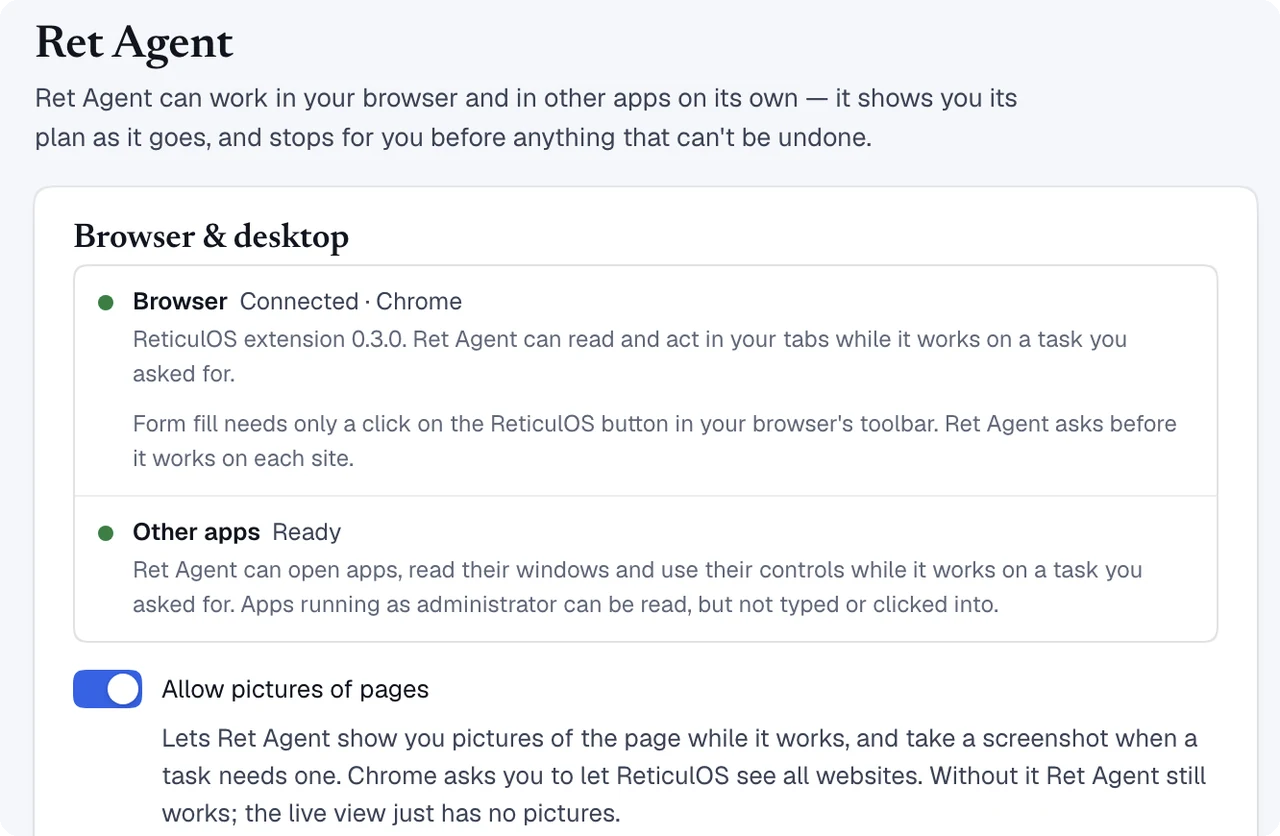
The extension doesn't ask for every website up front. The first time Ret Agent needs a site, your browser asks you to let ReticulOS use it.
Giving it a task
Press CtrlShiftSpace (⌃⌥R on a Mac) to switch the widget to Ret, and say what you want done, the way you'd ask a person. Name the page if it matters (“the form in my open tab”) and the notes to use (“from my job search collection”) if you know them.
While it works:
- Ret lists every step as it happens: the page it opened, the field it typed into, the button it pressed.
- The page shows it's at work, with an overlay and a Stop button, so you're never wondering whether that was you or Ret Agent.
- Long tasks check in. After a stretch of work, Ret Agent asks whether to keep going rather than running on indefinitely.
- Stop always works, from the page or from Ret.
- Nothing is lost if you step away. A task waiting on your answer, or cut off by closing ReticulOS, waits under Paused tasks in Settings, where you can carry on or end it.
What it does on its own, and what it asks first
Reading a page, scrolling, typing into a field, choosing from a list and clicking through to the next page can all be undone, and Ret Agent does them without stopping you every few seconds.
Some steps can't be undone. Ret Agent recognises them and waits for you before each one:
- Submitting a form, or sending a message
- Paying, buying, transferring money or making a booking
- Deleting or removing something
- Posting or publishing
- Creating an account or a subscription
- Cancelling or unsubscribing
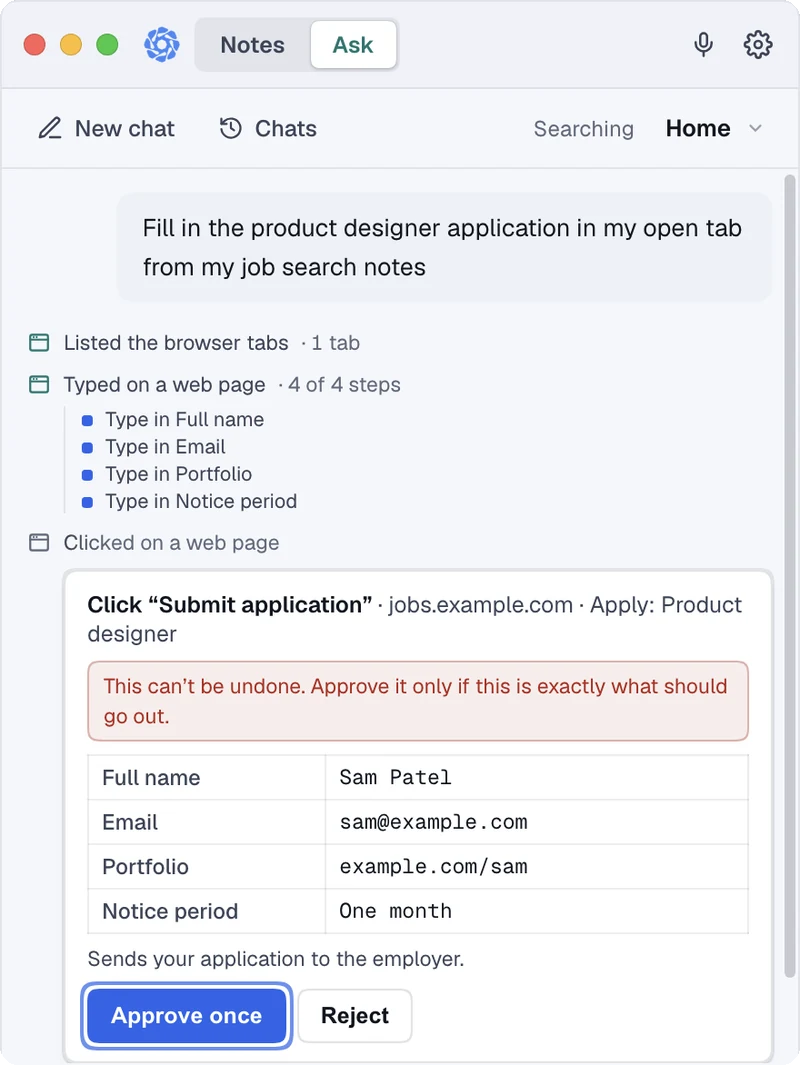
The card in Ret shows exactly what's about to happen and where, with Approve once and Reject. “Once” is literal: approving one submit never approves the next, and these steps can never be set to run without asking.
For ordinary steps you'd rather not be asked about again, a card can offer Always allow. Everything you've allowed that way is listed under Always allowed in Settings, where you can remove it.
What leaves your computer
To decide its next step, Ret Agent sends what it's working with to the AI that's thinking for it: your request, the text of the page it's on, the notes it found for the task, and, if you allowed pictures of pages, screenshots. By default that's Ret AI, through our service to Google's paid Gemini API, which doesn't train on it. With Pro you can choose your ChatGPT plan, your own API key, or a model on your computer instead.
It never reaches the password vault. Ret Agent can't open it, and nothing in it is searched or sent.
How many tasks
A task is one job you ask for, however many steps it takes. Pro includes 200 tasks a month, Student 160 and the Founder Edition 500. If you use them all, Ret tells you the date they come back.
Questions
- Do I need Pro?
- Yes. Ret Agent is part of Pro, with 200 tasks a month (Student 160, Founder Edition 500). Your first 14 days of Pro are free.
- Can it submit a form or pay for something without me?
- No. Submitting, sending, paying, buying, booking, deleting, publishing, signing up and cancelling always wait for you to approve that one step, and those approvals are never remembered.
- Which browsers does it work in?
- Chrome, Brave, Edge and Chromium, through the ReticulOS extension that comes with the app.
- Can it see my password vault?
- No. Ret Agent can't open the vault, and nothing in it is searched or sent.
