A term's worth of stuff, in six places
Think about where a single course actually lives. The slides are a PDF in your downloads folder. The readings are links in an email from the department. Your lecture notes are half in a notebook app and half on paper. The deadline for the essay is in a group chat. And the one diagram you need is a photo of the whiteboard somewhere in your camera roll, between two pictures of lunch.
None of that is a problem until exam week, when you need all of it at once and can find about half.
ReticulOS won't do your revision for you. What it does is give every piece of a course one home, make it findable by describing it, and let you ask questions of it. Here's how that looks in practice.
One collection per course
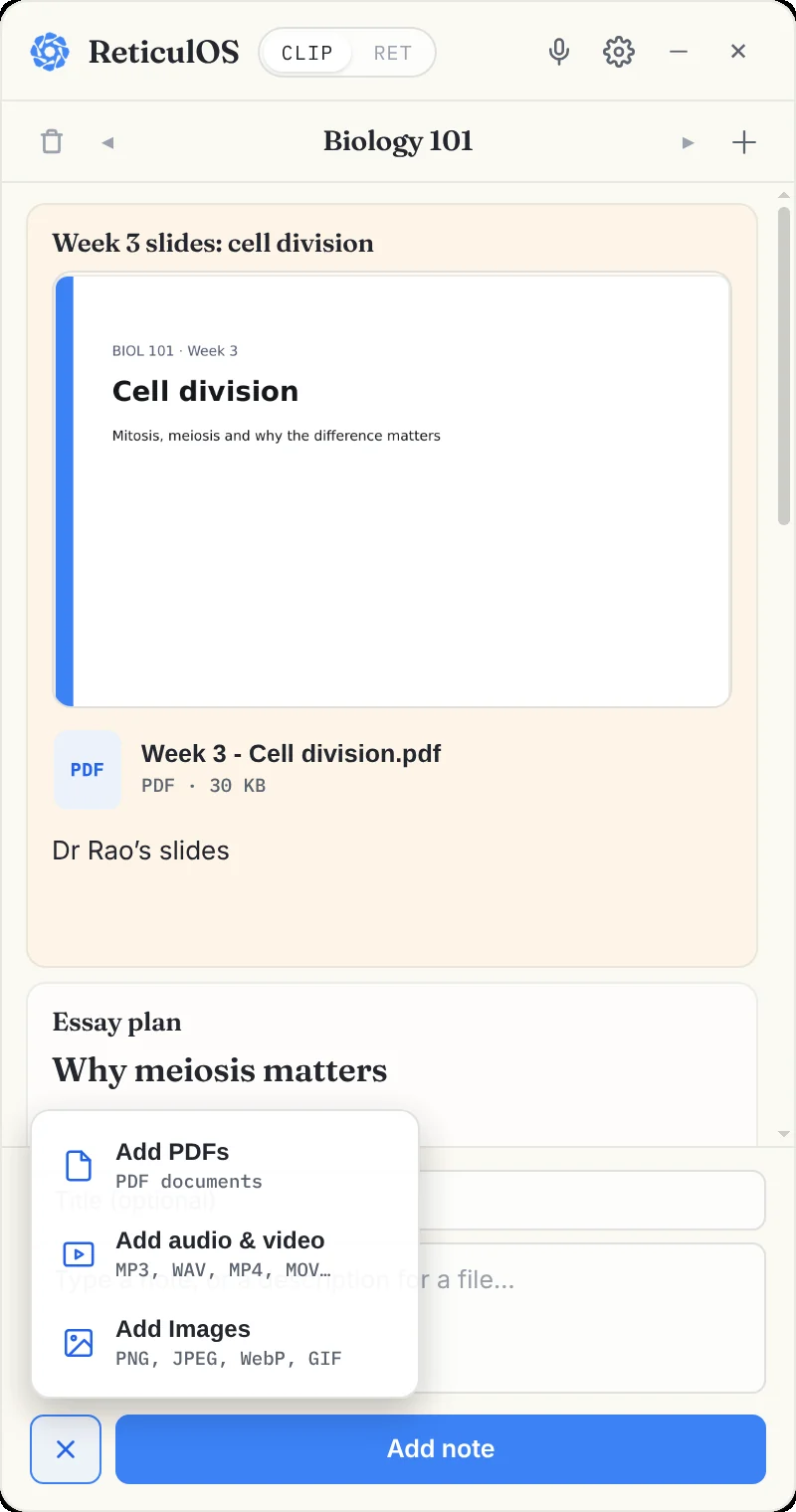
Start by making a collection for each course. In the widget, click + next to the collection's name and type one: Biology 101, Statistics, whatever your timetable says. Use the arrows beside the name to move between them.
The rule from then on is simple: anything for that course goes in its collection, whatever kind of thing it is.
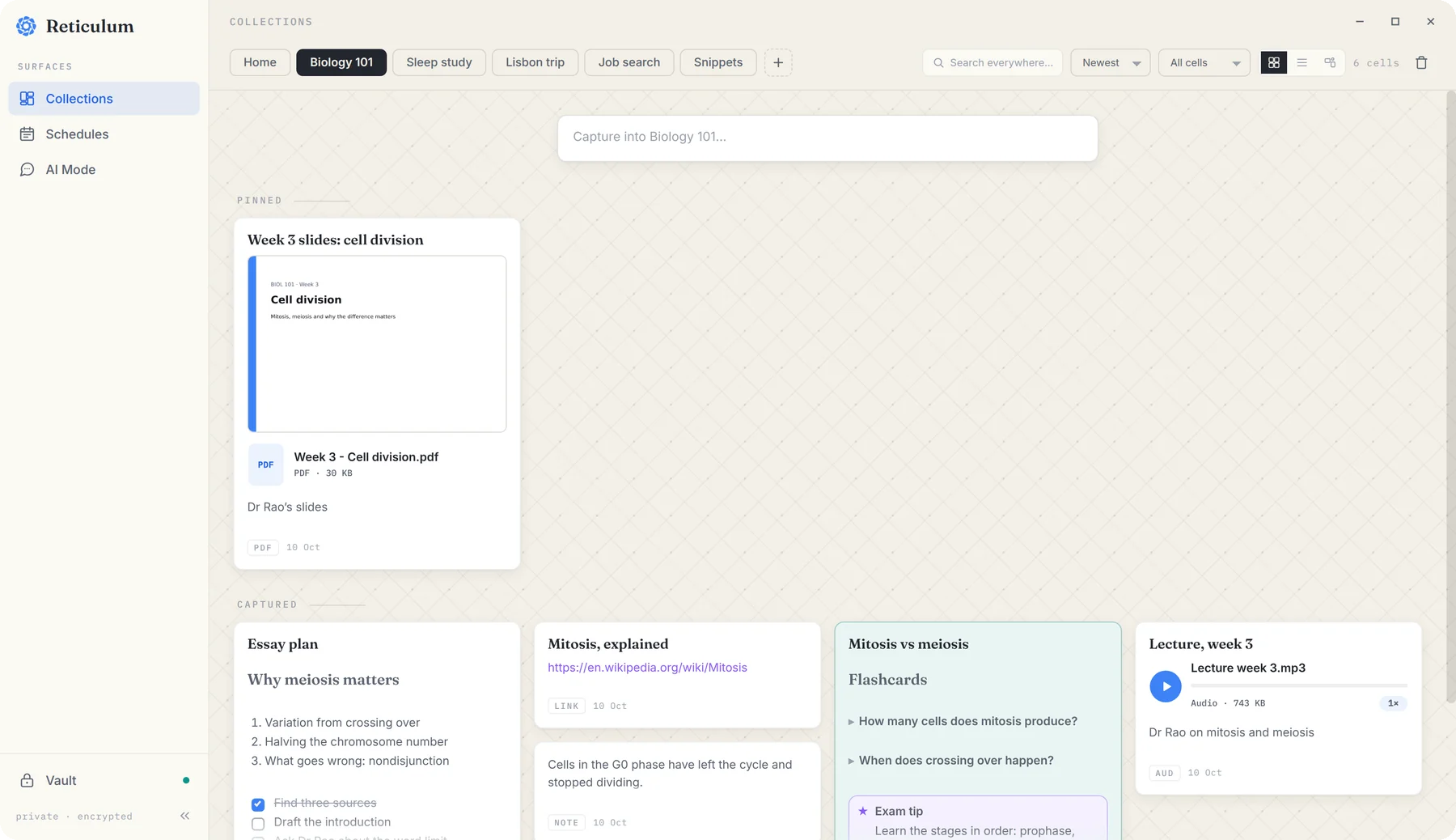
A few kinds of things you'll find yourself saving:
- Slides and readings. Open the + menu at the bottom of the widget and choose Add PDFs. Each PDF becomes a card with a preview of its first page that you can open with one click.
- Links. Paste a reading-list link and it's saved as a link you can open in your browser.
- Pictures of the board. Add a photo with Add Images, or grab part of your screen with CtrlShift4 and drag a box around the slide.
- Your own notes. Type straight into the widget, or open the full editor when you want headings and lists.
Record the lecture, find the moment later
If you're on Linux, press the microphone at the top of the widget when the lecture starts. ReticulOS records your microphone and your computer's sound together (handy for online lectures), and it saves as it goes, so if your laptop dies mid-lecture you lose seconds, not the hour. Press it again to stop. The recording appears as a card in the collection you're in, with its own player.
That player is worth knowing about. It plays right inside the card, and the speed button goes up to twice as fast, which is how most people end up re-watching lectures anyway.
With Pro, recordings get more useful still: you can find a moment by describing it. Type “where she explains crossing over” and ReticulOS jumps to that part of the recording. It's the difference between a recording you'll never re-watch and one you'll actually use.
Save as you read, without breaking your flow
When you're reading a PDF or a web page and a sentence matters, select it and press CtrlShift=. It lands in the collection that's open, as its own small note.
Two things make this nicer than copy and paste. You don't have to switch windows, so you don't lose your place. And it doesn't touch your clipboard, so whatever you'd copied before is still there.
Notes you can actually revise from
The editor in ReticulOS has a few tools that happen to be perfect for revision.
Flashcards with toggles. Type /toggle in a note. Put the question in the toggle's title and the answer inside. The answer stays folded away until you click it, which is all a flashcard really is. A note full of these is a revision deck.
Callouts for the things you must not forget. Type /important and write the definition or the exam tip inside. It stands out from the rest of the note in its own coloured box.
Tables for comparisons. Mitosis against meiosis, one theory against another: type /table, then press Tab to move between cells. Pressing Tab in the last cell adds a new row, so you never have to reach for the mouse.
You don't need to remember any of these. Typing / on an empty line opens a menu of everything the editor can do.
Deadlines in the day book
Deadlines have dates, and things with dates belong in the day book. Open Reticulum, the full workspace, and choose Schedules. It always opens on today. Step forward to the day an essay is due, add it as a to-do, and tag it with the course.
The day book has one feature students tend to love: anything you didn't tick off shows up on today, under Carried forward, until you deal with it. The email you meant to send your tutor on Monday doesn't quietly vanish. It waits for you.
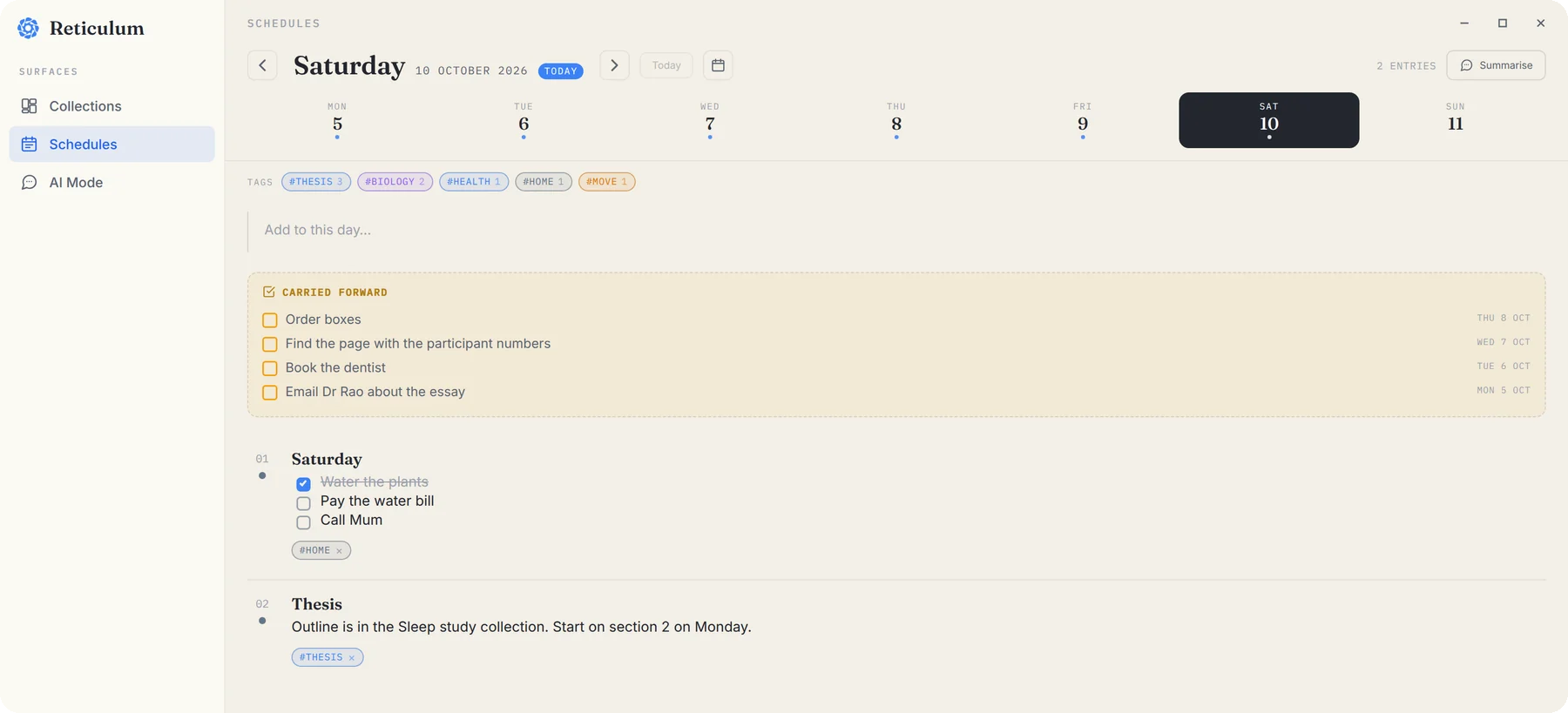
Tags make the day book useful across the whole term. Pick the biology tag at the top and you see every entry with it, from every day, in one list.
Ask before the exam
Here's where having everything in one place pays off. Switch the widget to Ret with CtrlShiftSpace, choose the course's collection, and ask in plain words:
- “Summarise what I've saved about cell division.”
- “What's the difference between the two tests in my stats notes?”
- “Which readings mention nondisjunction?”
Every answer comes back with small numbered citations, one for each note it used. Click one and Reticulum opens on that exact note, highlighted.
Where to start
You don't need to set all of this up at once. Make one collection for the course you're most worried about, save the slides and the next lecture into it, and see how it feels by the end of the week. The rest tends to follow.
Questions
- Is ReticulOS free for students?
- The free plan is the whole app with no time limit. Pro adds reading PDFs page by page and finding moments in recordings, plus a daily backup.
- Which laptops does it run on?
- Linux and Windows. Mac is coming next. Recording is Linux-only for now.
