Beyond the browser
A lot of everyday work doesn't happen on a web page. The spreadsheet you keep your bills in, a document you're writing from a template, a settings window, the app your school or office makes you use. If a job is mostly reading one thing and typing it into another, Ret Agent can now do it in those apps too.
This is sometimes called *computer use*: an AI that can open an app, see what's in its window and use its buttons and fields. In ReticulOS it works the same way as Ret Agent in your browser: you ask, you watch, you can stop it any time, and anything that can't be undone waits for your OK.
It's part of Pro, on Mac, Windows and Linux.
What you can hand it
- Notes into a document. “Open a new document and write up the meeting notes from today's day book page.”
- Figures into a spreadsheet. “Put the dates and amounts from my receipts collection into the open spreadsheet.”
- Reading something out of an app. “Open my bills spreadsheet and tell me what I paid for electricity in September.”
- Filling in a desktop form from what's in your notes, the same way it fills one on the web.
How it sees and uses an app
Most apps describe their own windows to the operating system: this is a button called Save, this is a text field labelled Name. That's what screen readers rely on, and it's what Ret Agent reads first. Working from those names rather than guessing at pixels makes it more precise, and it means Ret Agent knows what a button does before pressing it.
When an app doesn't describe itself well, Ret Agent can look at a picture of the window and point at a spot instead. It still judges what's under that spot first. If nothing there can be read, it doesn't guess: it holds the step and asks you.
Setting it up
Settings → Ret Agent → Browser & desktop shows Other apps and whether it's ready.
On a Mac, Ret Agent needs the Accessibility permission to read and use other apps. Settings has a Turn on button that takes you to System Settings → Privacy & Security → Accessibility, where you switch ReticulOS on. For pictures of windows it also needs Screen Recording.
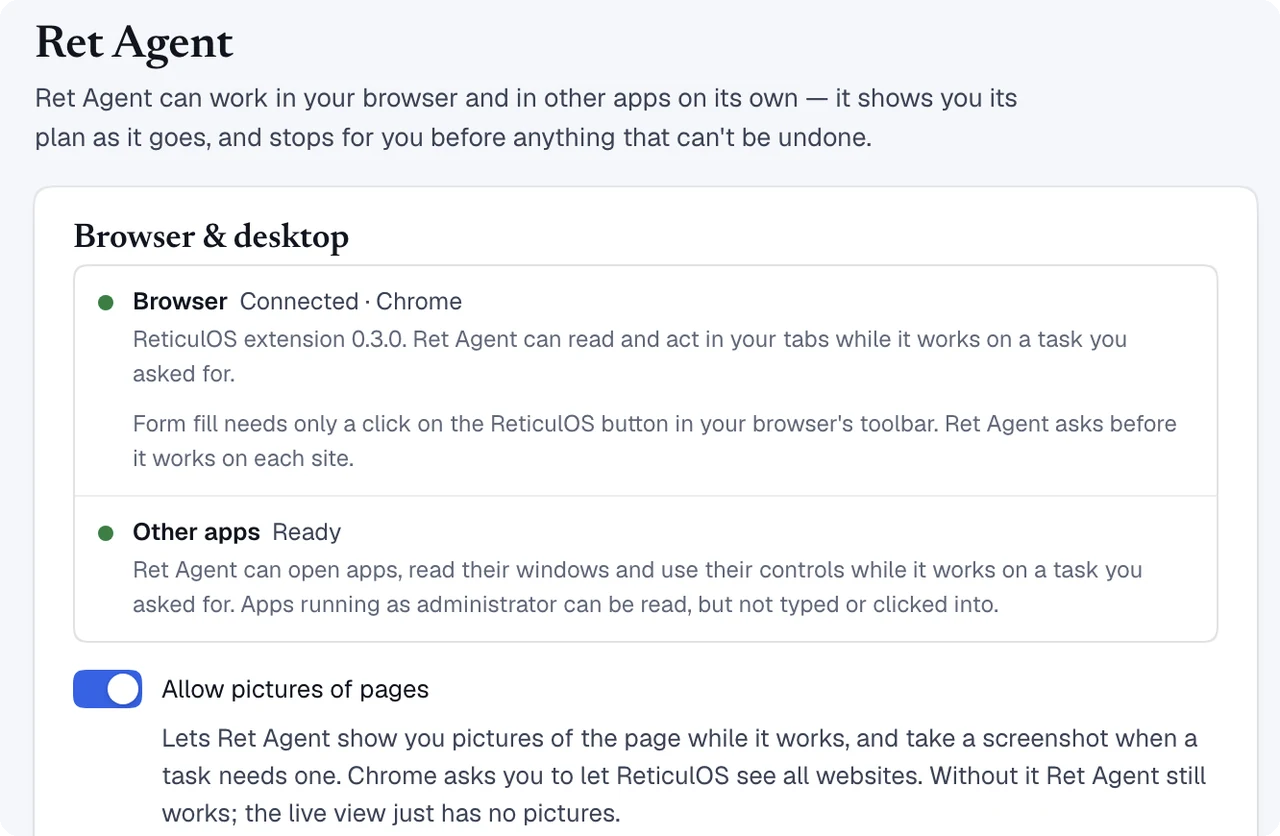
On Windows, there's nothing to set up: it shows Ready. One thing Windows doesn't allow: an app running as administrator can be read, but not typed or clicked into.
On Linux, it uses the desktop's accessibility service (AT-SPI); if anything it needs is missing, Settings says what. On X11 it's ready straight away. On Wayland, apps can be opened, read and used through accessibility, and the first time Ret Agent needs to type, GNOME asks you to allow it. Clicking by position isn't possible on Wayland, so it sticks to buttons and fields it can name.
Giving it a task
Press CtrlShiftSpace (⌃⌥R on a Mac) for Ret, and describe the job. Say which app if it matters, and which notes to use if you know.
While it works, Ret lists each step: the app it opened, the field it typed into, the button it pressed. Its own cursor shows where it's working, so you can tell its clicks from yours. On Windows and the Mac, a frame sits around the window it's using, with a small label, Ret Agent is using and the app's name, and a Stop button. While a step is waiting for you, the label turns amber.
You can stop it at any time from Ret, and it's best to leave the mouse and keyboard to it until it's done or waiting on you.
What it asks first
The rule is the same everywhere. Opening apps, reading windows, typing and clicking through can be undone, so Ret Agent gets on with them. Anything that can't be undone, such as sending, submitting, paying, booking, deleting, publishing, signing up or cancelling, waits for you with Approve once and Reject. Those approvals are never remembered, so each one is your decision.
Long tasks check in after a stretch of work, and a task waiting on you, or cut off by closing ReticulOS, stays under Paused tasks in Settings until you carry on or end it.
What leaves your computer
To decide its next step, Ret Agent sends what it's working with to the AI that's thinking for it: your request, what it read from the window, the notes it found for the task, and pictures of the window when it needs them. By default that's Ret AI, through our service to Google's paid Gemini API, which doesn't train on it. With Pro you can choose your ChatGPT plan, your own API key or a model on your computer instead.
The password vault stays out of reach: Ret Agent can't open it, and nothing in it is searched or sent.
How many tasks
A task is one job you ask for, whether it happens in your browser, your other apps, or both. Pro includes 200 tasks a month, Student 160 and the Founder Edition 500.
Questions
- Does it take over my computer?
- Only for the task you asked for, and you can stop it at any time from Ret (on Windows, from the screen too). Its own cursor shows where it's working, and anything that can't be undone waits for your approval.
- Does it work on Wayland?
- Yes, through the accessibility service. GNOME asks you once to let it type, and it uses buttons and fields by name, because clicking by position isn't possible on Wayland.
- Which apps can it use?
- Most apps that describe their windows to the operating system, which is most of them. Windows doesn't let it type or click into apps running as administrator.
