Some things shouldn't sit in an ordinary note: the Wi-Fi password, a bank login, the code for the gym locker, an API token. The vault is a separate, locked space inside ReticulOS for exactly those. It sits right next to your notes but is kept entirely apart from them: a different key, never searched, and never shown to any AI.
Setting it up
- Open Reticulum, the full workspace, and choose Vault at the bottom of the sidebar.
- Choose a vault password of at least 8 characters, type it twice, and select Create vault.
- You're in. Select + to add your first credential.
Each credential has a title, the website it's for, your username or email, the password, and room for notes. Only the title is required.
Day to day
Once the vault exists, opening it asks for your vault password.
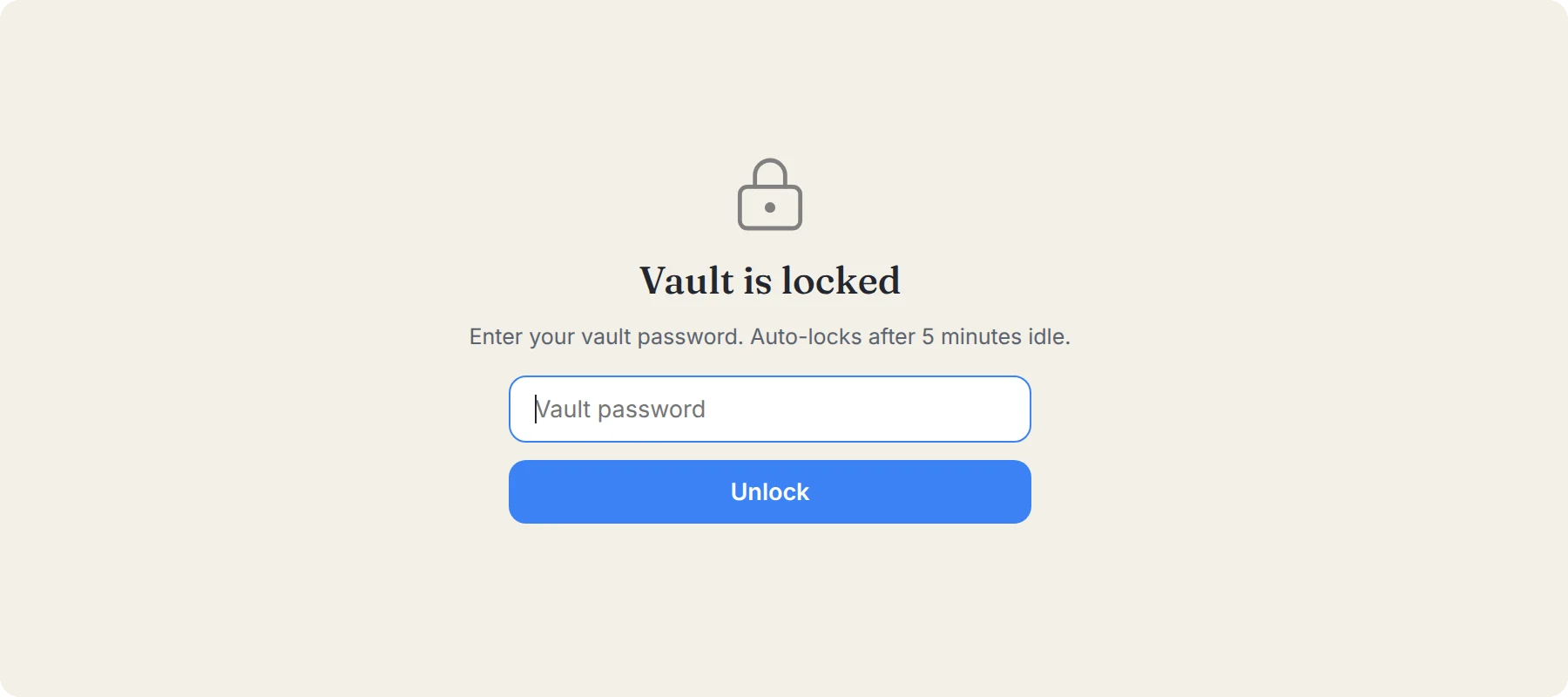
Inside, passwords are hidden as dots until you need them.
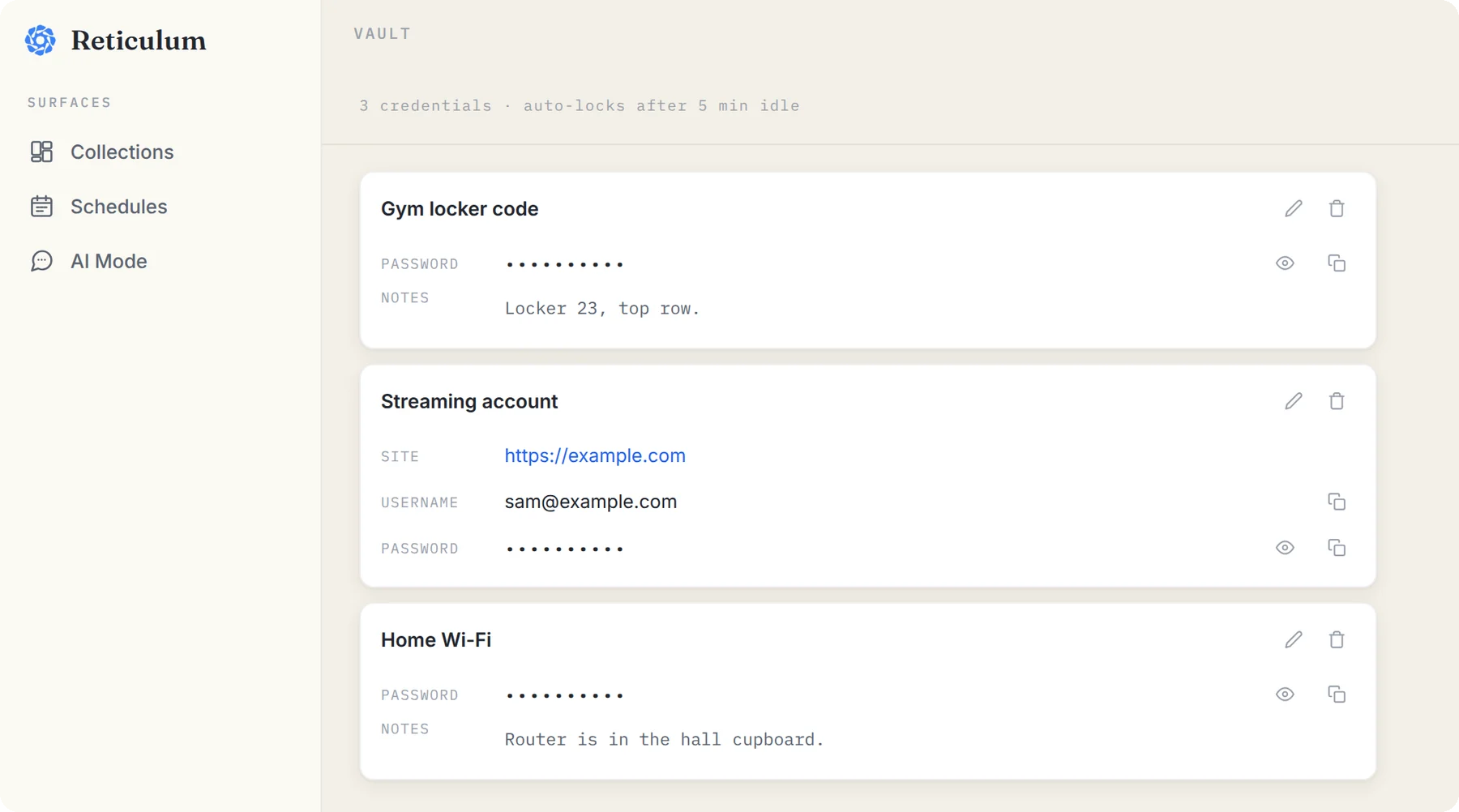
- Copy a password with the copy button next to it, and paste it where you need it. If you don't copy anything else, ReticulOS clears it from your clipboard after 45 seconds, so it isn't left lying around for the next app to read.
- Reveal a password with the eye button when you need to read it.
- Edit or delete a credential with the buttons at its top right.
The vault locks itself after five minutes without use, whenever you close Reticulum, and any time you press the lock button at the top. A small dot next to Vault in the sidebar tells you when it's open.
How it's protected
Everything you save in ReticulOS is already encrypted on disk. The vault adds a second, separate lock on top:
- Each entry is sealed with a key made from your vault password, not the key the rest of the database uses.
- That key exists only in memory while the vault is open, and is wiped when it locks.
- Vault entries are never added to search or to the index Ret uses, so they can't turn up in results or answers.
- Connected AI apps, like Claude or Cursor, have no way to reach the vault at all.
In practice, someone who got hold of your unlocked computer could read your notes, but would still need your vault password to read the vault.
When a dedicated password manager is the better choice
The vault does one job well: keeping the handful of passwords and codes you look up yourself, close to the rest of your stuff, under a separate lock.
It doesn't fill in passwords for you in the browser, and it doesn't sync to your phone. If you want those, a dedicated password manager is the right tool, and the two get along fine. A sensible split is to keep your website logins in a password manager and use the vault for everything that doesn't fit there: the locker code, the alarm code, the Wi-Fi password for the holiday flat, the licence key for that one app.
