

ReticulOS does a lot quietly. Most of it you'd never go looking for, and people tend to find it by accident, usually with a small “oh, nice”. Here are twelve of those moments, collected in one place so you can skip the accident.
Saving
1. Capture part of the screen
Press CtrlShift4, drag a box around anything on your screen, and it's saved as a picture in the collection that's open. It works on things you can't select: an error dialog, a chart in a video call, a diagram in a PDF that won't let you copy.
2. Save a selection without copying it
You probably know that CtrlShift= saves the text you've selected. What's easy to miss is that it never touches your clipboard. Whatever you copied a minute ago is still there to paste. On a busy day, that matters more than it sounds.
3. Paste anywhere in Reticulum
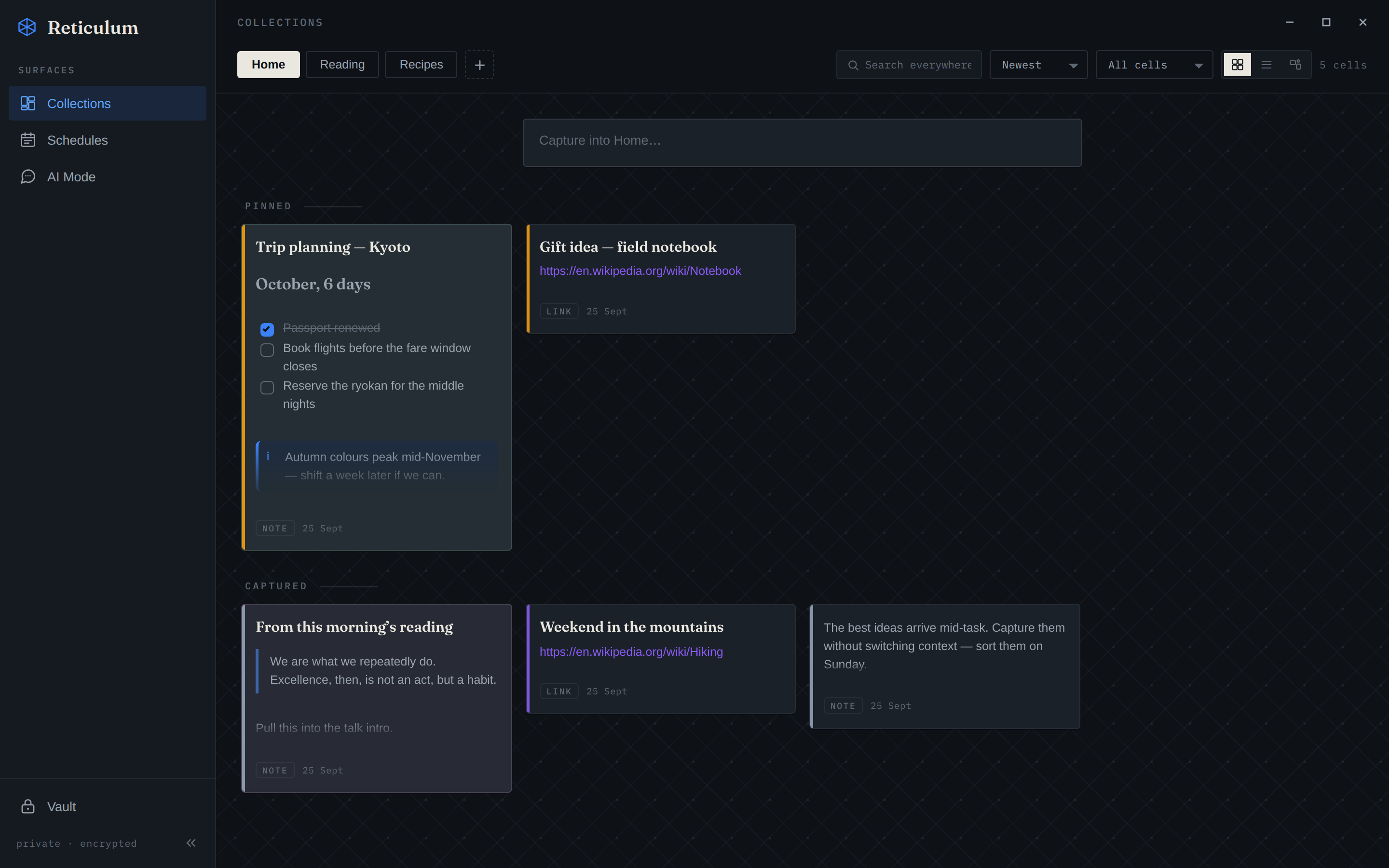
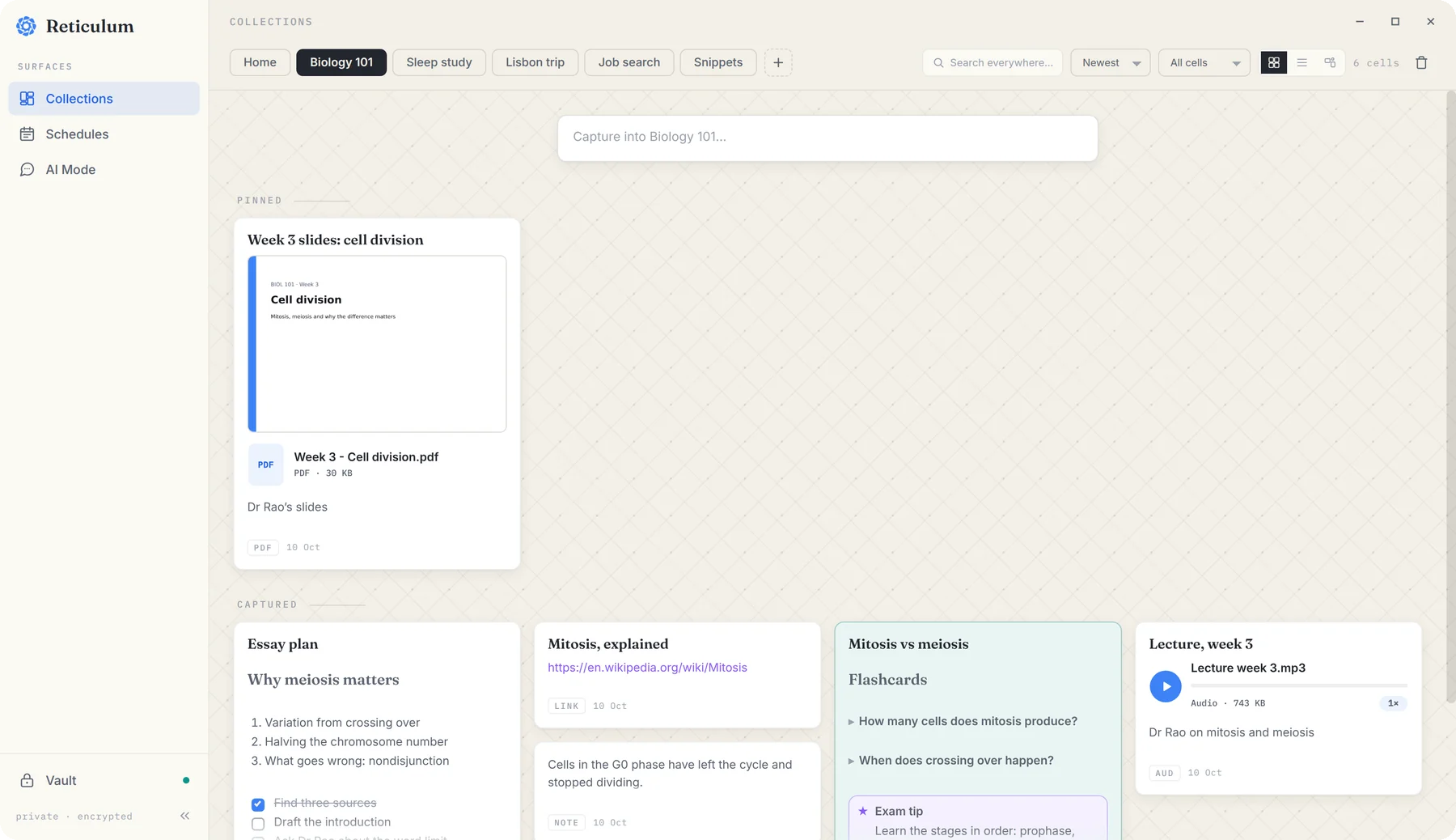
In Reticulum, the full workspace, press CtrlV with nothing selected and whatever's on your clipboard becomes a note in the current collection: a picture if it's an image, a link if it's a web address, text otherwise. In the day book, it lands on whichever day you're looking at.
Finding
4. Find a photo by describing it
Pictures in ReticulOS are understood by what's in them, not just by their names. A photo with no title at all can be found by searching for “dog in the garden” or “the receipt for the sofa”. This happens on your computer: the model that understands pictures runs locally.
5. Search from any app
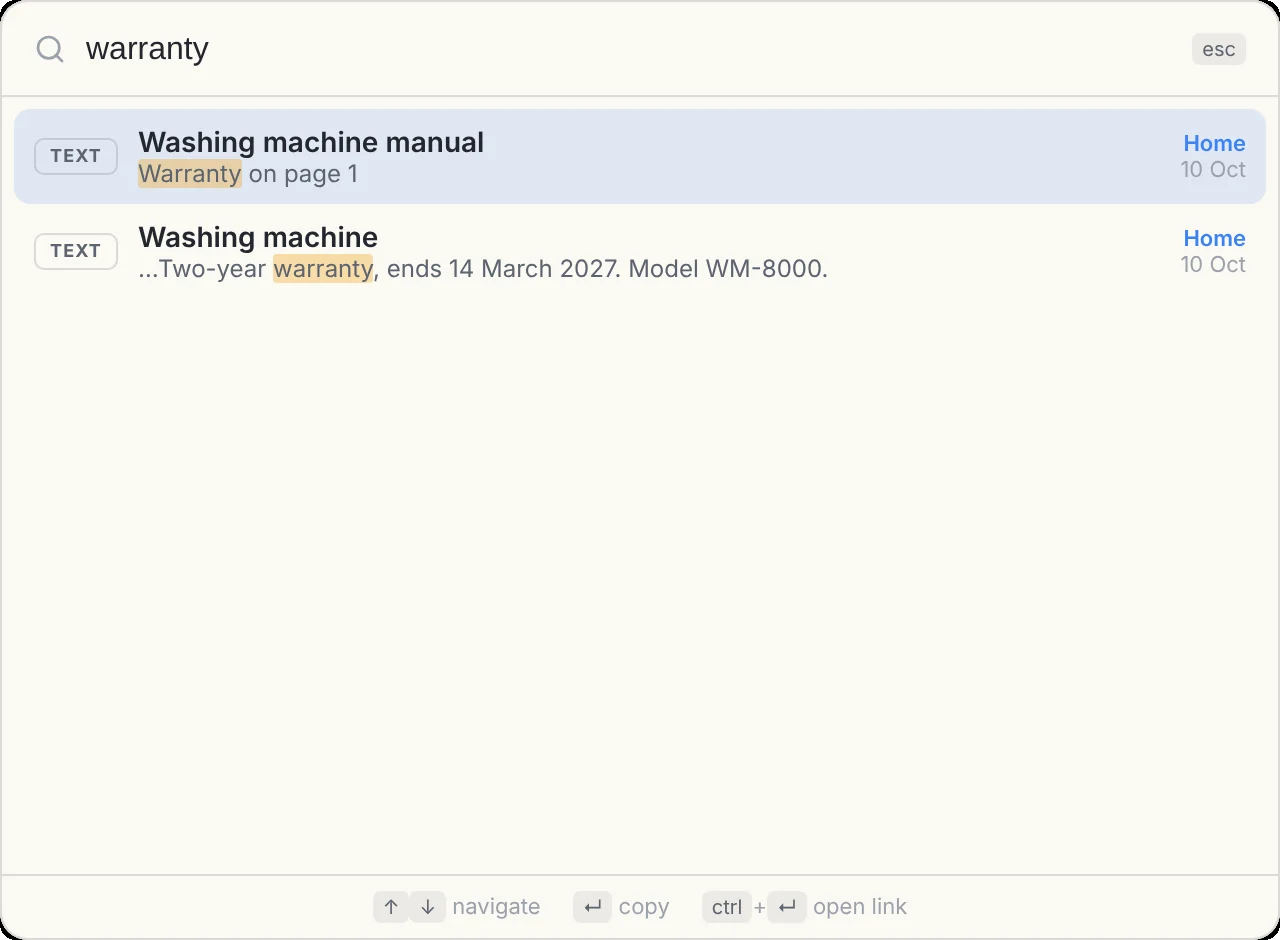
Press CtrlShift/ and a search box appears on top of whatever you're doing, searching every collection at once. Use the arrow keys to move through results, Enter to copy one, and Esc to close it.
6. Jump straight to the source
When Ret answers a question, each claim carries a small numbered citation. Click one and Reticulum opens on that exact note and highlights it for a moment, even if it's in a different collection or in the day book.
Writing
7. Turn notes into flashcards
Type /toggle in the editor. The first line is the question; everything inside is folded away until you click. A note full of these is a revision deck, a FAQ, or a way to hide the long version of something.
8. Type Markdown, or don't
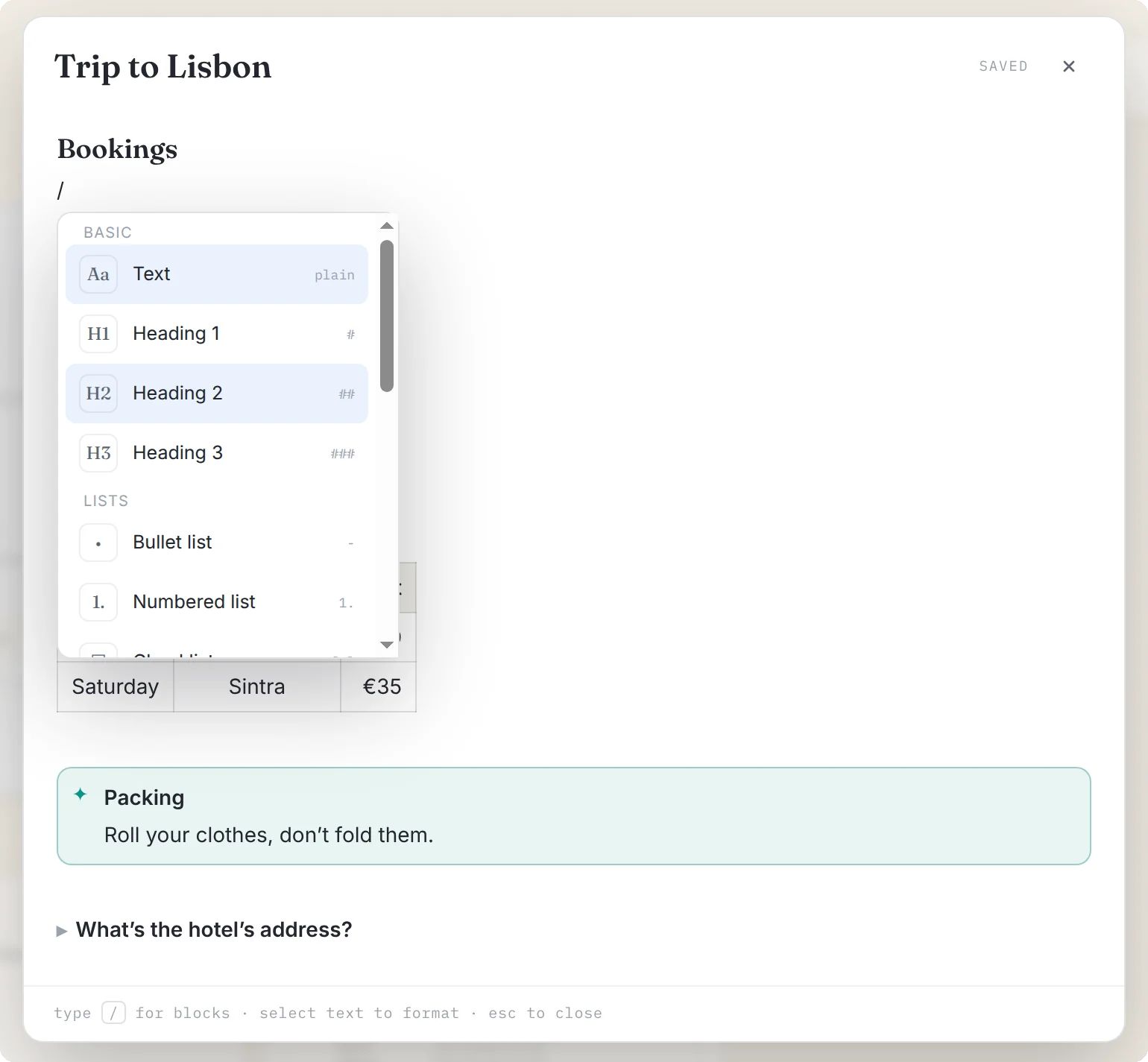
Typing / on an empty line opens a menu of everything the editor can add: headings, lists, checklists, quotes, code, tables, toggles and five kinds of callout.
If you already know Markdown, just type it. # and a space becomes a heading, - a bullet, [] a checkbox, > a quote. Wrap words in ** for bold or == for a highlight.
9. Reorder by dragging, grow tables with Tab
Hover over a block in the editor and a small handle appears beside it. Drag it to move the whole block. In a table, Tab moves to the next cell, and Tab in the very last cell adds a new row.
Peace of mind
10. Undo what an AI app did
If you've connected Claude, Cursor or another AI app to ReticulOS, every change it makes is listed under Recent AI activity in Ret's settings, each with its own Undo. Nothing changes without your approval in the first place, but it's good to know you can take it back.
11. Copied passwords tidy up after themselves
Copy a password from the vault and paste it where you need it. If you don't copy anything else, ReticulOS clears it from your clipboard after 45 seconds, so it isn't sitting there for the next app to read.
12. Play recordings faster
Audio notes play right inside their card, and the speed button steps through 1×, 1.25×, 1.5× and 2×. A one-hour lecture becomes a 30-minute one.
That's the twelve. If you found one we missed, tell us at support@reticulos.com and it might make the next list.
