Why another to-do app usually doesn't help
To-do apps are good at one thing: a list of tasks. The trouble is that a task on its own is rarely enough. “Call the landlord” needs the lease and the list of questions. “Finish the methods section” needs the paper with the participant numbers. So the task lives in one app and its context in another, and every time you sit down to do it, you go hunting.
ReticulOS does tasks differently. A to-do can sit right inside the note it's about, and the day book makes sure that anything you don't finish comes back to you.
To-dos live inside notes
In any note, type [] and a space at the start of a line, and it becomes a checkbox. That's the whole trick. The packing list lives inside the trip note. The questions for the landlord live inside the note with the lease details. When you tick something off, you're already looking at everything you need for it.
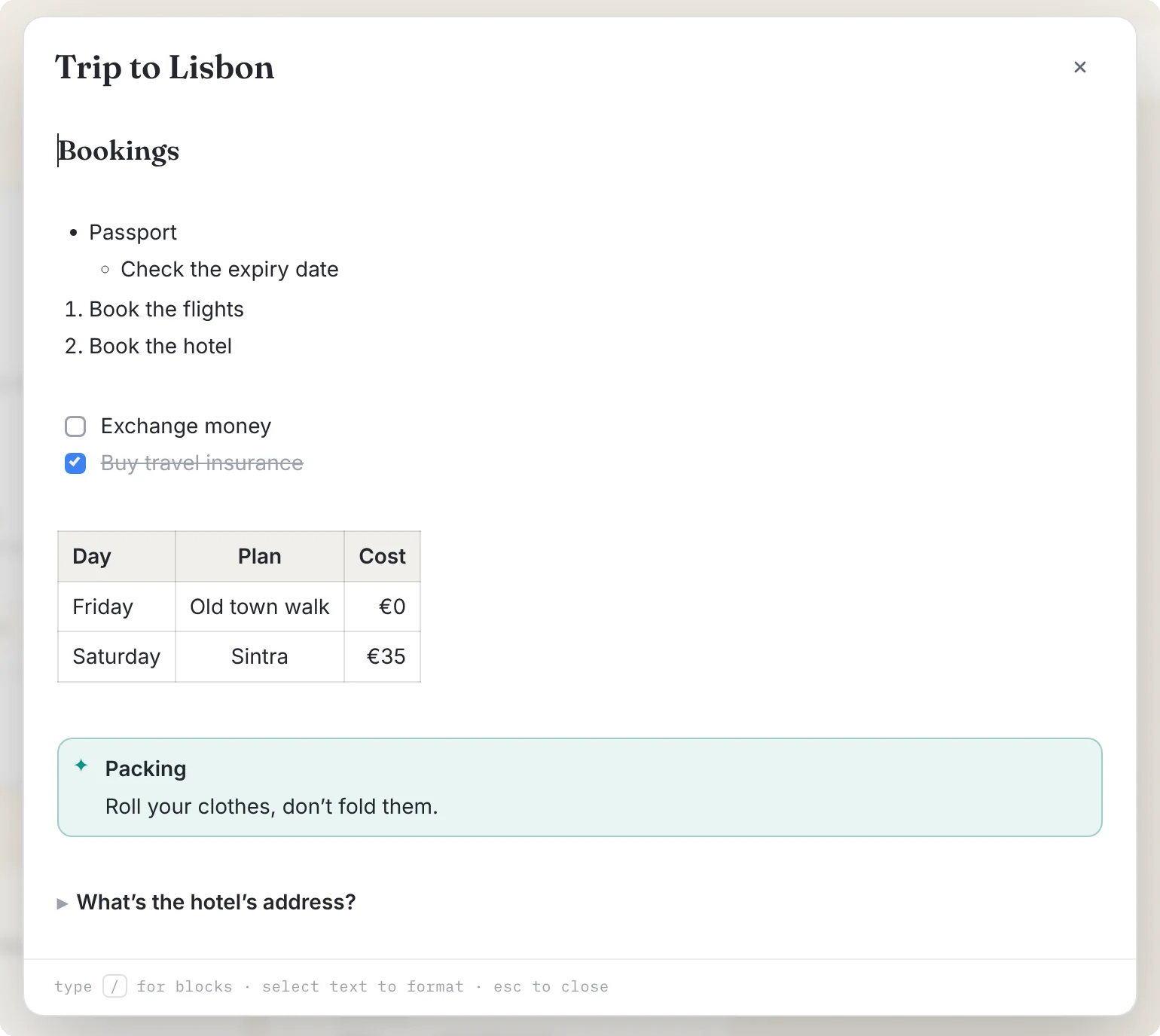
For lists you keep coming back to, pin the note so it sits at the top of its collection.
A page for each day
Tasks with a date belong in the day book. Open Reticulum and choose Schedules. It always opens on today.
- Type into Add to this day… to add an entry. Entries use the same editor as everything else, so checklists, tables and callouts all work.
- Tag the entry with the project it belongs to, like
moveorthesis. Tags autocomplete from ones you've used, and each gets its own colour. - Step to other days with the arrows, jump back with Today, or pick any date. The week strip along the top shows a dot under every day that has entries.
Unfinished things come back
This is the feature that makes the day book work as a task manager. When you look at today, any unticked to-dos from recent days appear at the top under Carried forward, each labelled with the day it came from.
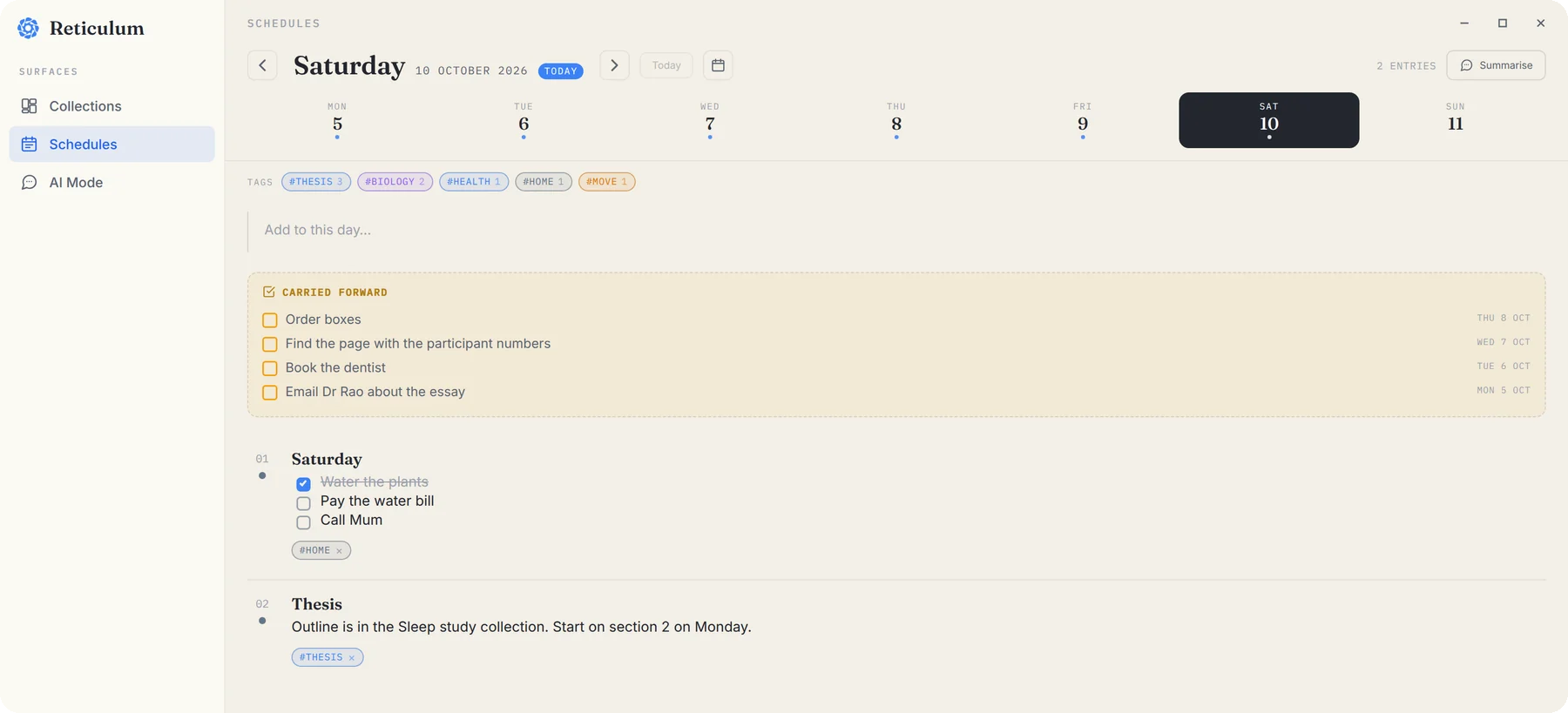
From there you've got two honest options. Bring a to-do into today with one click, and it becomes a fresh task on today's page. Or leave it, and it stays where it was. What you can't do is forget it, which is the point.
See a whole project at once
Tags turn the day book into a project view. Pick a tag at the top, say thesis, and you see every entry with that tag, from every day, grouped by date.
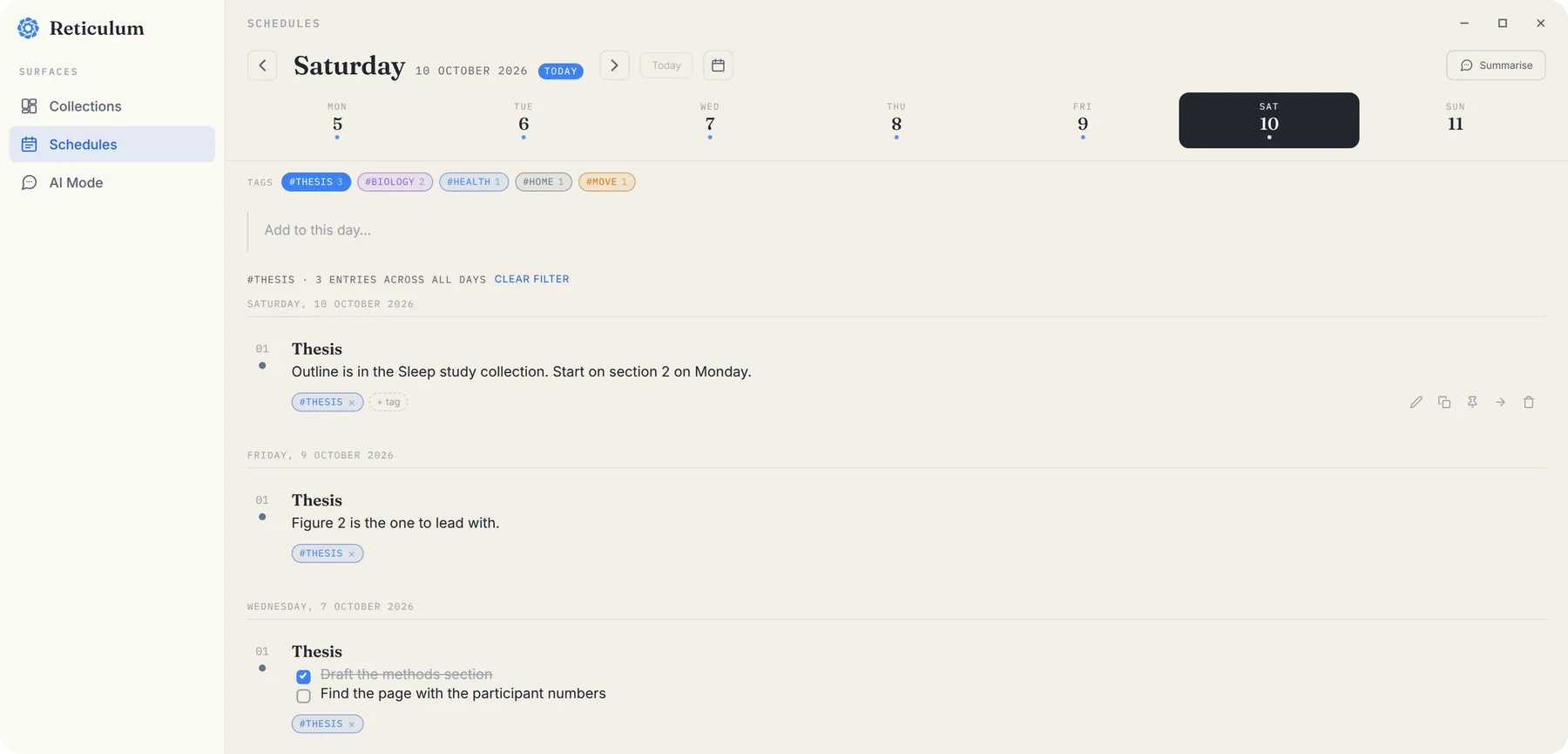
That's your project's task list and its history together, without setting up a project anywhere.
Review the week
Once a week, give yourself ten minutes:
- Walk back through the week with the week strip. The dots show which days have something in them.
- On a busy day, press Summarise for a short summary written by AI, and save it as a note if it's worth keeping.
- Or switch the widget to Ret with CtrlShiftSpace, choose All collections, and ask “what did I work on last week?” Day book entries are indexed with their date and tags, so Ret can answer questions about time, not just topics.
What the day book isn't
It isn't a shared team tracker, and it doesn't send you reminders at a set time. It's a calm place to plan your own days, with the context right next to the tasks. For most personal work, that turns out to be what was missing.
