The day book gives every day its own page. It's the place for anything with a date attached: plans, appointments, a line about how the day went, the thing you must not forget on Thursday. This guide walks through every part of it.
Opening it
Open Reticulum, the full workspace, and choose Schedules in the sidebar. The day book always opens on today, whatever day you last looked at, so you never have to find your place.
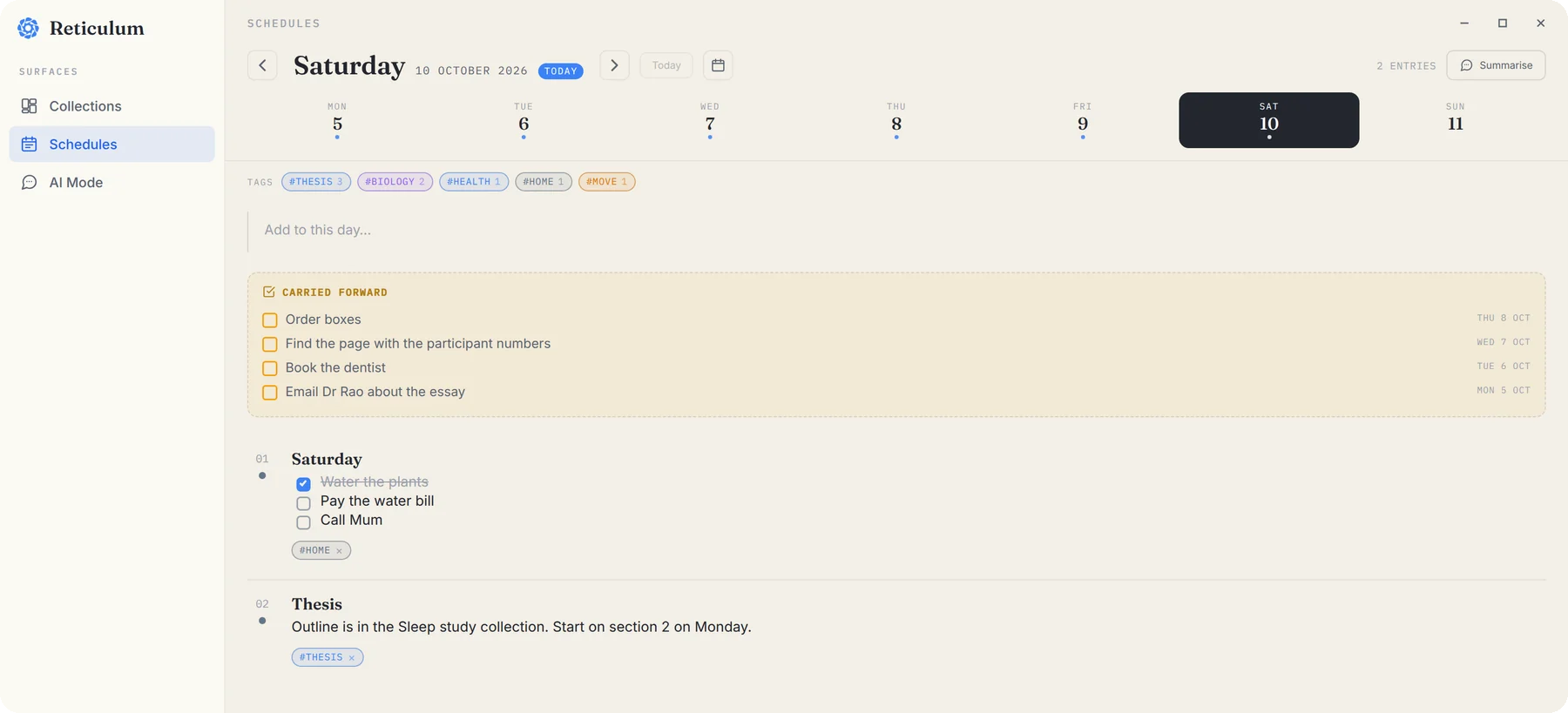
Getting around
- The arrows beside the date step back and forward one day at a time.
- Today jumps back to today from wherever you are.
- The calendar button lets you pick any date, past or future.
- The week strip shows the whole week. Click a day to open it. A dot under a day means it has entries, so you can see at a glance which days you've written in.
Adding entries
Type into Add to this day… at the top of the page. Give it a title if you like, then write. Entries use the same editor as the rest of ReticulOS, so you can use checklists, tables, callouts and toggles, and type / for the full menu.
You can also paste. With nothing selected, CtrlV drops whatever's on your clipboard onto the day you're looking at: a picture, a link, or text.
Tags
Tags connect entries across days. Add one to an entry with + tag, and type a word like health, work or thesis. Tags autocomplete from ones you've used before, and each tag gets its own colour, so the same tag always looks the same.
All your tags appear along the top of the day book, each with a count. Pick one and the page changes to show every entry with that tag, from every day, grouped by date and newest first.
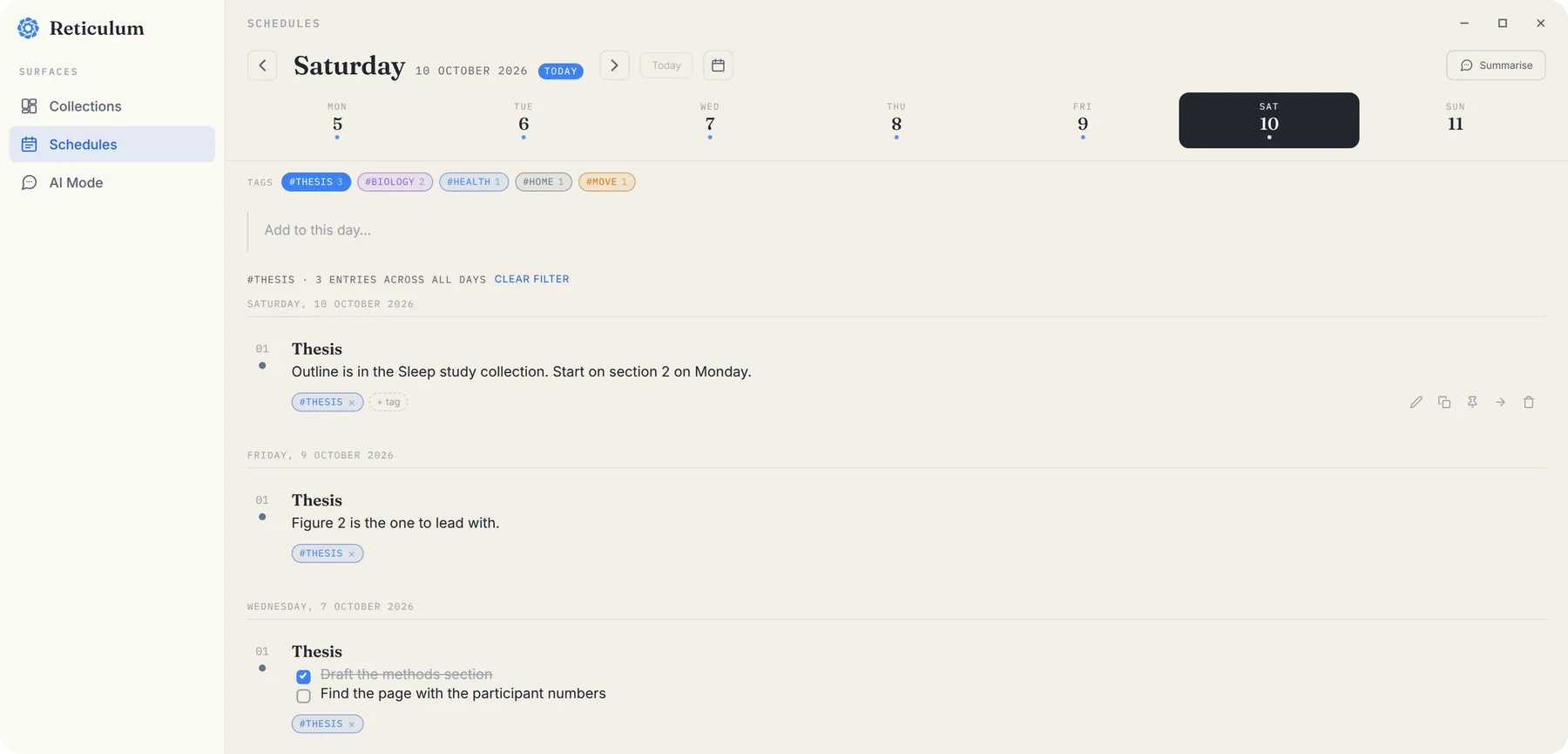
This is more useful than it first looks. A tag view is a project diary, a health log, a list of every job you've applied for, or a record of every time you noticed the boiler making that noise.
Carried forward
When you look at today, any unticked to-dos from recent days appear at the top under Carried forward, each marked with the day it came from. Click one to bring it into today as a fresh to-do. Leave it, and it stays on its original day.
The effect is simple and surprisingly powerful: nothing you meant to do quietly disappears. It keeps showing up until you decide what to do with it.
Summarise a day
On a busy day, press Summarise at the top right. Ret reads the day's entries and writes a short summary. If it's worth keeping, save it, and it's added to the day as a note tagged summary.
Ask about the past
Every day book entry is indexed with its date and its tags, so Ret can answer questions about time as well as topics. Switch the widget to Ret with CtrlShiftSpace, choose All collections, and ask things like:
- “What did I note about the boiler last month?”
- “What did I work on last week?”
- “When did I last see the dentist?”
Each answer carries small numbered citations. Click one and Reticulum opens the day book on that day, with the entry highlighted.
