Everything in ReticulOS is a note inside a collection. That's the whole model, and once it clicks, the rest of the app makes sense. This guide covers both halves, plus the two places you'll see them: the widget and Reticulum.
The widget and Reticulum
ReticulOS has two main windows, and they show the same notes.
The widget is the small panel that floats above your other windows. It's built for the moment: saving something, glancing at a collection, asking Ret a quick question. Show and hide it from anywhere with CtrlShift\.
Reticulum is the full workspace, for when you want to sit down and organise, edit or browse. Open it from the widget's settings (the gear) or from the ReticulOS icon in your system tray.
Anything you change in one appears in the other straight away.
Notes
A note (the app calls them cells) is one thing you saved. You never have to tell ReticulOS what kind of thing it is. It works that out:
- Text. Anything you type, paste or capture. A text note can be one line, or a full document with headings, lists, tables, checklists and more.
- Links. Save a web address and it becomes a link you can open with one click.
- Pictures. Paste an image, add one from the + menu, or capture part of your screen with CtrlShift4.
- Files. PDFs up to 50 MB, and audio and video up to 200 MB, added from the + menu. PDFs show a preview of their first page. Audio plays right inside the card.
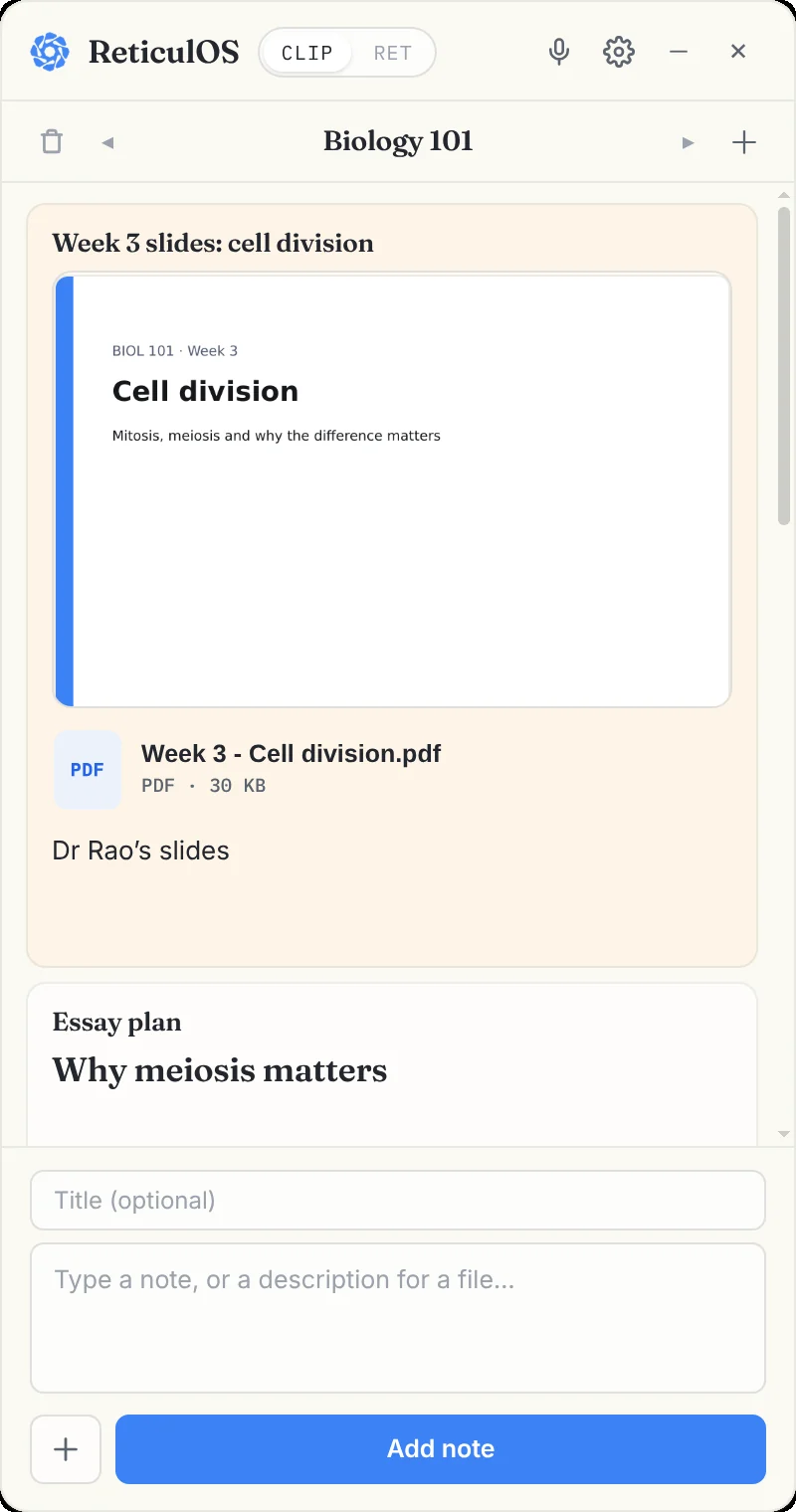
To add a note in the widget, type into the box at the bottom (a title is optional) and press Add note or CtrlEnter. To add a file, use the + button beside it.
Collections
A collection is a named home for related notes: a course, a trip, a project, a part of your life. You start with one called Home, which always exists and can't be deleted.
- In the widget, click + beside the collection's name, type a name, and confirm.
- Use the arrows on either side of the name to move between collections.
- Whatever you save goes into the collection that's showing.
- To move a note to a different collection, use Move to… on its card.
In Reticulum, your collections sit as a row of tabs along the top. Click one to open it.
Three ways to look at a collection
Reticulum can show any collection in three ways, and remembers which you chose for each.
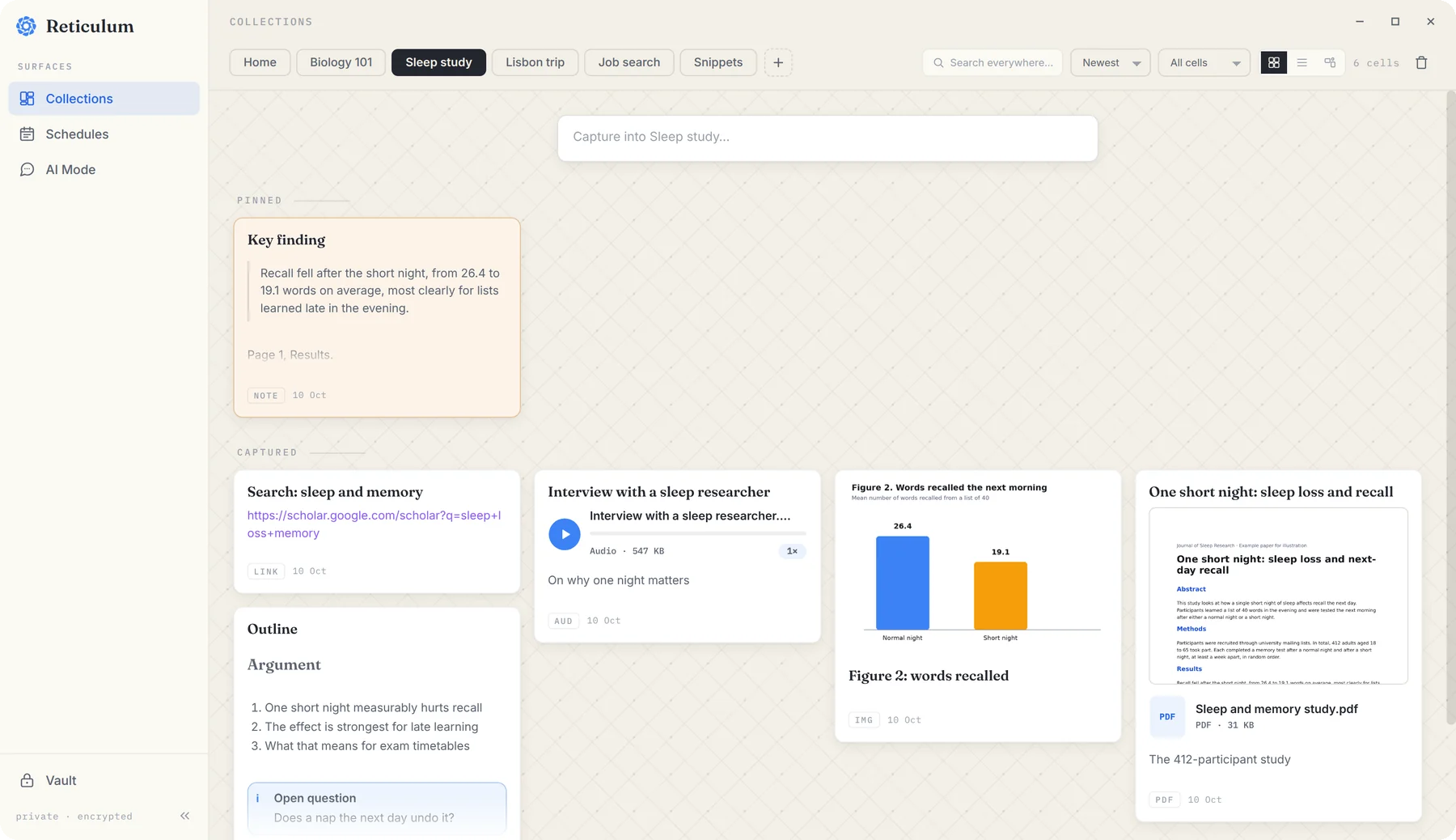
Grid lays notes out as cards in columns, with pinned notes on their own shelf at the top. It's the best view for browsing.
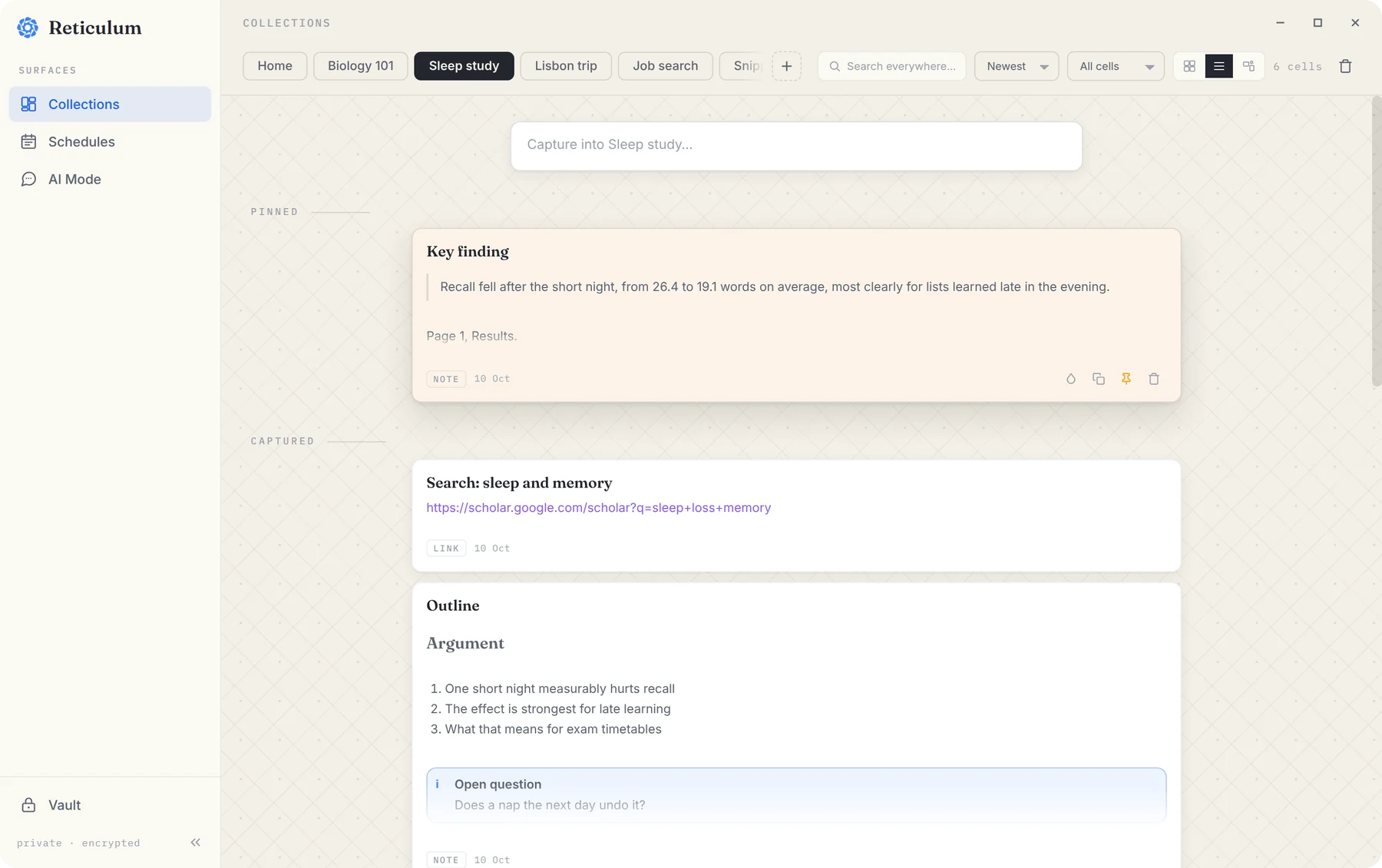
List shows one note per row. It's the fastest way to scan a big collection.
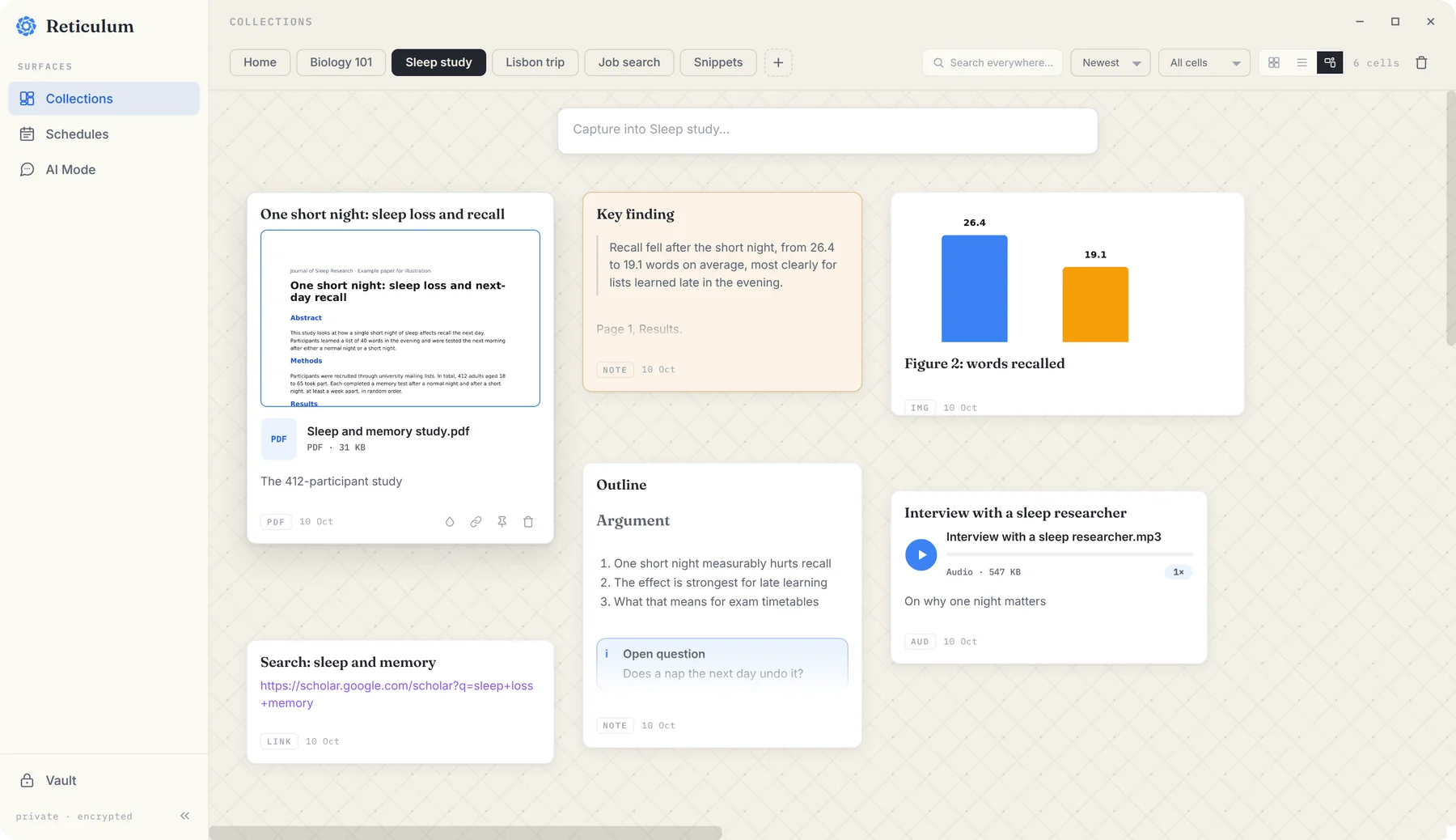
Canvas lets you drag notes anywhere and resize them. ReticulOS remembers where you put everything, so you can lay a project out the way you think about it.
Editing, pinning, colours and deleting
- Edit. Click a note's text to open the editor. It saves as you type, and Esc closes it. Type
/on an empty line for headings, lists, tables and more. - Pin. Pinned notes stay at the top of their collection.
- Colour. In Reticulum, give any card one of eight colours to group things by eye.
- Delete. Deleted notes can be brought back with Undo, and are only removed for good after 30 days.
Finding things
Inside Reticulum, the Search everywhere… box at the top looks through all your collections. From any other app, CtrlShift/ does the same in a box that pops up over whatever you're doing. And when you'd rather ask than search, CtrlShiftSpace switches the widget to Ret.
That's the whole model. Everything else in ReticulOS, from the day book to the vault, builds on it.
